.webp)








Top rated on OMR Reviews, Trusted, G2, and others
Our customers value ContractHero for efficiency, reliability and first-class support.


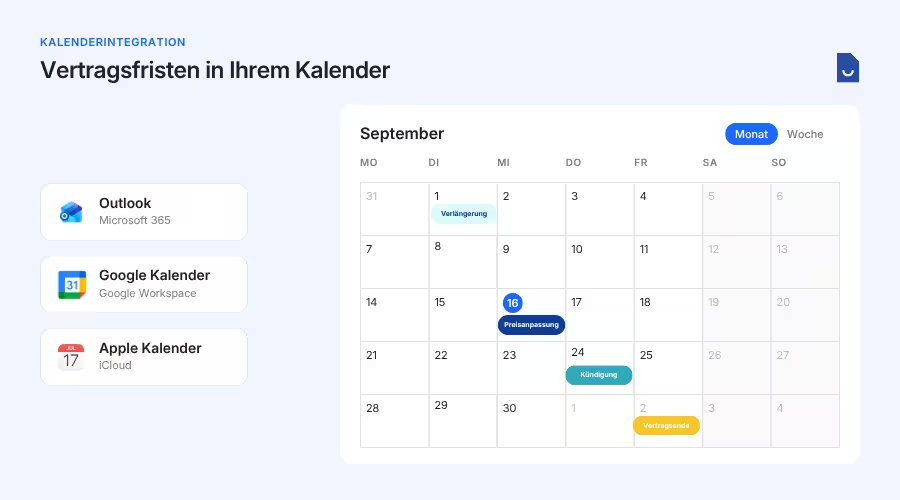
Most contract deadlines aren’t missed because no one knows about them, but because no one thinks about them at the crucial moment. With ContractHero’s calendar integration, notice periods and renewals appear right where you plan your workday anyway: in your own calendar.
Connect it once, and it runs on its own. New deadlines are added automatically—you don’t have to update anything.










.webp)
.png)

In the video, you'll see how a filtered calendar view is created, how it becomes a calendar link, and how the deadlines are then added to your own calendar.



Our customers value ContractHero for efficiency, reliability and first-class support.


_BestSupport_QualityOfSupport%20(5).png)


You can subscribe to your contract deadlines in Outlook, Google Calendar, and Apple Calendar. ContractHero provides an iCalendar link for this purpose—that is, a subscription address in the widely used ICS format. Many other calendar programs also support this format, so you’re not tied to a specific provider. Setup is a one-time process per person and calendar; after that, you don’t need to do anything else in ContractHero. This is a one-way subscription: Your contract deadlines appear in the calendar, but events from your calendar do not sync back to ContractHero.
You can control this yourself using the saved view on which the calendar link is based. Possible options include, for example, the end date of the initial contract term, the latest possible termination date, and due dates and reminder dates for tasks. In the Calendar section, you can filter in advance which contracts and which types of appointments you want to see—for example, only contracts in a specific category or only the “ deadlines ” for the current quarter. Each entry includes the contract name in the title, so you can see what it’s about right in the monthly view. Clicking the link in the event takes you directly to the corresponding contract in ContractHero.
No. The subscribed calendar does not refer to a fixed list of contracts, but rather to your saved view with its filters. If a new contract is added that matches these filters, its deadlines will appear automatically. This also applies to your existing contracts, since the view accesses all contracts that match the filters—not just newly created ones. If a date in a contract changes, the calendar entry will be updated during the next synchronization. This completely eliminates the need to manually update the calendar.
In four steps. First, open the Calendar section in ContractHero and filter the view to suit your needs. Then save this view under a descriptive name, such as “Purchasing Notice Periods.” Next, create a calendar link for this view and copy the subscription address. Finally, add this address to Outlook, Google, or Apple Calendar as a subscribed calendar. The entire process takes just a few minutes and is set up permanently afterward.
The subscribed calendar updates automatically in the background; you don't need to resync it. However, how often it syncs is determined by your calendar program, not by ContractHero. In Apple Calendar, you set the interval in the settings for the subscribed calendar; Outlook and Google Calendar retrieve the data at their own intervals. If you want to see a last-minute change right away, it’s worth checking the Calendar section in ContractHero, which always shows the current status.
You can manage each calendar link directly from the saved view in ContractHero. You have two options. Either you create a new link—in which case the old one becomes invalid immediately, and everyone using the calendar will need the new address—or you remove the link entirely, in which case existing subscribers will no longer receive updates. You can do either of these yourself in just a few seconds, without having to go through support.
Yes. Your contract deadlines appear in the calendar app as a separate calendar alongside your other calendars. You can show or hide it at any time, rename it, and assign it a color so that you can distinguish contract deadlines from meetings at a glance. To focus on your work, hide it without losing your subscription. When planning your week, turn it back on and you’ll immediately see which deadline is coming up next.

contract management : Software for small and medium-sized businesses in Germany, Austria, and Switzerland. Made and hosted in Germany.